Raspberry Pi 4B — Automator Kiosk + Admin Desktop Access
Updated working version
System user: pi
Device name shown in shell: automator
Desktop session: Raspberry Pi OS Bookworm Desktop using Wayland / Labwc
Kiosk URL: http://127.0.0.1:8080/
1. Operating Model
This setup uses one desktop user only:
There is no separate kiosk user.
General users
General users use:
- HDMI monitor
- Keyboard
- Mouse
They normally see only:
Chromium runs in kiosk mode and covers the Raspberry Pi desktop.
Admins / tech team
Admins use local keyboard/mouse or SSH for terminal access.
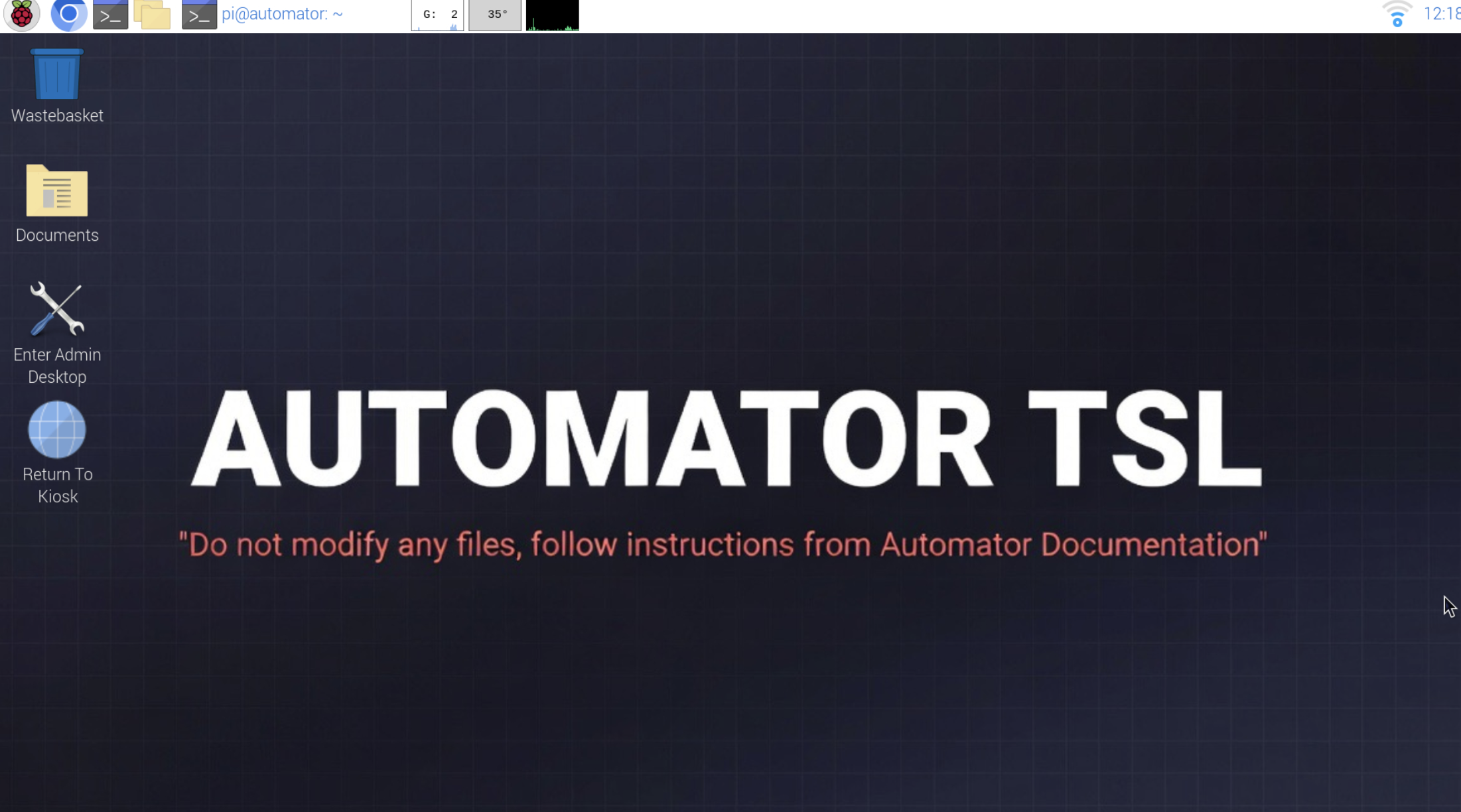
Admins can enter full desktop mode by using:
Admins can return to kiosk mode by using:
On many keyboards, the Windows key is also called the Super key.
2. Confirm the Correct User
Run:
Expected output:
If the output is pi, continue with this guide.
3. Enable Persistent User Services
Enable lingering for the pi user:
Verify:
Expected output:
This helps user-level services remain reliable for the pi account.
4. Create Required Directories
Run:
5. Create the Admin Desktop Script
This script closes Chromium kiosk mode and restores the Raspberry Pi desktop panel if needed.
Run:
cat > ~/.local/bin/enter-admin-desktop.sh <<'EOF'
#!/bin/bash

pkill chromium 2>/dev/null || true
pkill -f chromium 2>/dev/null || true

sleep 1

pgrep -x wf-panel-pi >/dev/null || wf-panel-pi &
EOF

chmod +x ~/.local/bin/enter-admin-desktop.sh
Manual test:
Expected result:
- Chromium closes.
- The full Raspberry Pi desktop is visible.
- The top panel/menu bar appears.
6. Create the Start Kiosk Script
This script closes any existing Chromium process and starts Chromium in kiosk mode.
Run:
cat > ~/.local/bin/start-kiosk.sh <<'EOF'
#!/bin/bash

pkill chromium 2>/dev/null || true
pkill -f chromium 2>/dev/null || true
sleep 2

DISPLAY=:0 chromium \
  --kiosk \
  --noerrdialogs \
  --disable-infobars \
  --no-first-run \
  --disable-session-crashed-bubble \
  --start-maximized \
  --overscroll-history-navigation=0 \
  http://127.0.0.1:8080/ &
EOF

chmod +x ~/.local/bin/start-kiosk.sh
Manual test:
Expected result:
- Chromium opens.
- Chromium fills the screen.
- The Automator page loads at:
7. Create Labwc Keyboard Shortcuts
This is the confirmed working shortcut setup.
Run:
cat > ~/.config/labwc/rc.xml <<'EOF'
<?xml version="1.0"?>
<labwc_config>
  <keyboard>
    <default />

    <keybind key="C-A-a">
      <action name="Execute" command="/home/pi/.local/bin/enter-admin-desktop.sh" />
    </keybind>

    <keybind key="W-k">
      <action name="Execute" command="/home/pi/.local/bin/start-kiosk.sh" />
    </keybind>
  </keyboard>
</labwc_config>
EOF
Shortcut meaning:
Important: use lowercase a and k in the Labwc config.
8. Reload Labwc Correctly
Do not rely on this command from an SSH or remote shell session:
From a remote shell, it may fail with:
Use this instead:
Then test:
If the shortcuts still do not work, reboot once:
After reboot, test again:
9. Configure Automatic Kiosk Startup on Boot
Create or replace Labwc autostart:
cat > ~/.config/labwc/autostart <<'EOF'
sleep 2
pgrep -x wf-panel-pi >/dev/null || wf-panel-pi &

sleep 8
/home/pi/.local/bin/start-kiosk.sh
EOF

chmod +x ~/.config/labwc/autostart
This does three things after desktop login:
- Waits briefly for the desktop session to start.
- Starts the Raspberry Pi panel if it is not already running.
- Starts Chromium kiosk mode.
10. Create Desktop Icons
These are useful if keyboard shortcuts fail.
Enter Admin Desktop icon
Run:
cat > ~/Desktop/Enter-Admin-Desktop.desktop <<'EOF'
[Desktop Entry]
Type=Application
Name=Enter Admin Desktop
Comment=Close kiosk browser and show full Raspberry Pi desktop
Exec=/home/pi/.local/bin/enter-admin-desktop.sh
Icon=preferences-system
Terminal=false
Categories=Utility;
EOF

chmod +x ~/Desktop/Enter-Admin-Desktop.desktop
Return To Kiosk icon
Run:
cat > ~/Desktop/Return-To-Kiosk.desktop <<'EOF'
[Desktop Entry]
Type=Application
Name=Return To Kiosk
Comment=Restart Chromium kiosk browser
Exec=/home/pi/.local/bin/start-kiosk.sh
Icon=web-browser
Terminal=false
Categories=Utility;
EOF

chmod +x ~/Desktop/Return-To-Kiosk.desktop
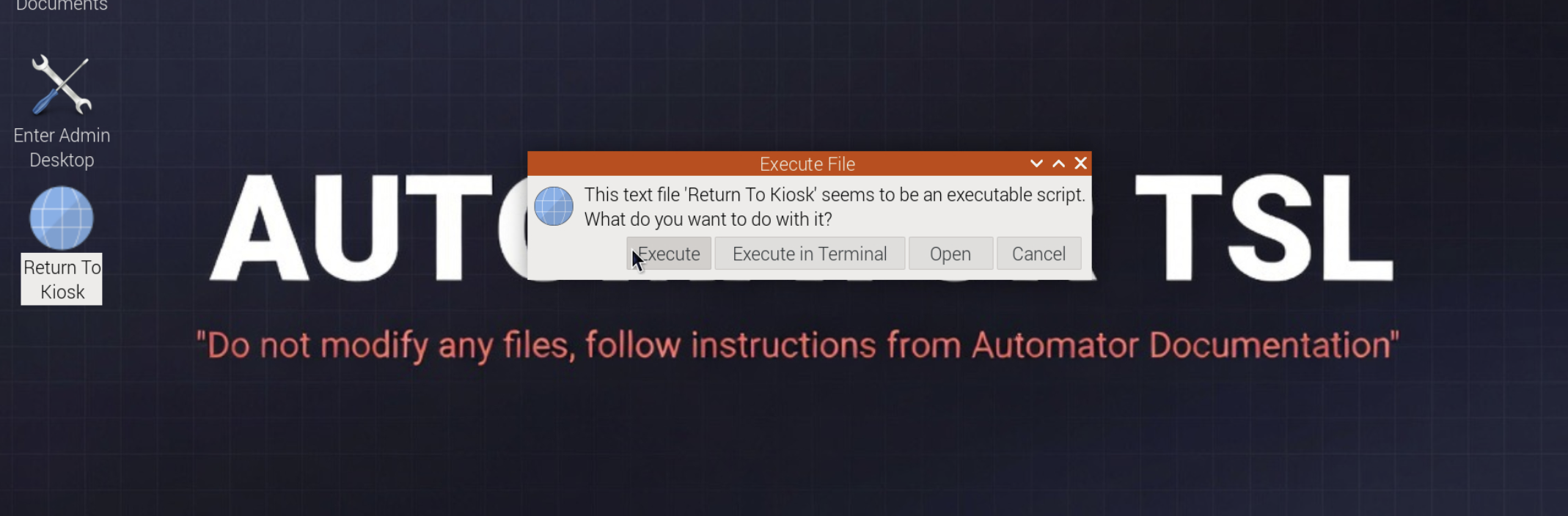
When double-clicked, the desktop will prompt to execute the script. Click Execute to return to kiosk mode.
11. Full Copy-Paste Setup Block
Use this block to recreate the working setup from scratch.
mkdir -p ~/.config/labwc ~/.local/bin ~/Desktop

sudo loginctl enable-linger pi

cat > ~/.local/bin/enter-admin-desktop.sh <<'EOF'
#!/bin/bash

pkill chromium 2>/dev/null || true
pkill -f chromium 2>/dev/null || true

sleep 1

pgrep -x wf-panel-pi >/dev/null || wf-panel-pi &
EOF

chmod +x ~/.local/bin/enter-admin-desktop.sh

cat > ~/.local/bin/start-kiosk.sh <<'EOF'
#!/bin/bash

pkill chromium 2>/dev/null || true
pkill -f chromium 2>/dev/null || true
sleep 2

DISPLAY=:0 chromium \
  --kiosk \
  --noerrdialogs \
  --disable-infobars \
  --no-first-run \
  --disable-session-crashed-bubble \
  --start-maximized \
  --overscroll-history-navigation=0 \
  http://127.0.0.1:8080/ &
EOF

chmod +x ~/.local/bin/start-kiosk.sh

cat > ~/.config/labwc/rc.xml <<'EOF'
<?xml version="1.0"?>
<labwc_config>
  <keyboard>
    <default />

    <keybind key="C-A-a">
      <action name="Execute" command="/home/pi/.local/bin/enter-admin-desktop.sh" />
    </keybind>

    <keybind key="W-k">
      <action name="Execute" command="/home/pi/.local/bin/start-kiosk.sh" />
    </keybind>
  </keyboard>
</labwc_config>
EOF

cat > ~/.config/labwc/autostart <<'EOF'
sleep 2
pgrep -x wf-panel-pi >/dev/null || wf-panel-pi &

sleep 8
/home/pi/.local/bin/start-kiosk.sh
EOF

chmod +x ~/.config/labwc/autostart

cat > ~/Desktop/Enter-Admin-Desktop.desktop <<'EOF'
[Desktop Entry]
Type=Application
Name=Enter Admin Desktop
Comment=Close kiosk browser and show full Raspberry Pi desktop
Exec=/home/pi/.local/bin/enter-admin-desktop.sh
Icon=preferences-system
Terminal=false
Categories=Utility;
EOF

chmod +x ~/Desktop/Enter-Admin-Desktop.desktop

cat > ~/Desktop/Return-To-Kiosk.desktop <<'EOF'
[Desktop Entry]
Type=Application
Name=Return To Kiosk
Comment=Restart Chromium kiosk browser
Exec=/home/pi/.local/bin/start-kiosk.sh
Icon=web-browser
Terminal=false
Categories=Utility;
EOF

chmod +x ~/Desktop/Return-To-Kiosk.desktop

killall -s SIGHUP labwc 2>/dev/null || true
After running the block, test:
If the shortcuts do not work immediately, reboot once:
12. Manual Fallback Commands
If shortcuts fail, use these from a local terminal or SSH session.
Enter admin desktop
Return to kiosk
Reload Labwc config
Reboot if needed
13. Verify the Desktop Session
If shortcuts stop working after reboot, check whether Labwc is running:
echo "XDG_CURRENT_DESKTOP=$XDG_CURRENT_DESKTOP"
echo "XDG_SESSION_TYPE=$XDG_SESSION_TYPE"
pgrep -af "labwc|wayfire|wf-panel-pi|lxpanel"
Expected useful output includes labwc.
If Labwc is not running, the shortcuts in ~/.config/labwc/rc.xml will not apply.
14. Safety Rules
Do not run these during routine administration:
Do not disable:
Do not create a separate kiosk desktop session.
Keep the desktop session attached to the normal pi user so Chromium kiosk mode and the HDMI display operate on the same graphical session.
15. Final Behaviour
On boot
Raspberry Pi logs into pi desktop
wf-panel-pi starts
Chromium kiosk opens
General users see Automator only
Admin mode
Press Ctrl + Alt + A
Chromium closes
Full Raspberry Pi desktop appears
Top panel/menu bar should be visible
Return to kiosk
16. Troubleshooting Summary
Problem: labwc --reconfigure says LABWC_PID not set
Use:
Problem: desktop icon works but shortcut does not
Recreate ~/.config/labwc/rc.xml, then run:
If needed:
Problem: admin desktop opens but top menu bar is missing
Run:
The admin desktop script already includes this line.
Problem: kiosk does not start
Run:
Problem: cannot exit kiosk
Run:
or: