 HoloWin
Control Windows with desk taps and hand gestures
HoloWin turns taps on four desk zones into actions on your PC. A webcam can also recognize hand poses, swipes and custom finger symbols. Processing runs locally on Windows 11.
Windows 11 build 22621 or later, x64. The single EXE includes its companion files and runtimes, which it extracts on first launch. No Microsoft Store installation is needed. Downloads are built by the repository's release workflow; the link becomes available after the first release finishes.
What can it do?
- Open websites and apps, send F1–F10 or custom shortcuts, and run saved macros.
- Switch tabs with left/right hand swipes or assign your own gesture actions.
- Increase or decrease volume and supported display brightness.
- Trigger actions from light levels, Bluetooth connections, HID attachment or supported Windows presence sensors.
Choose your actions and save them in a profile. Cameras and sensors start only when you enable them. Gesture, light and presence actions also need to be armed for each session.
Quick start
- Download and run HoloWin.exe. Allow time for the first extraction.
- In Hardware, select and enable your microphone, then press Apply microphone.
- In Profiles, create a Passive profile or select one and press Use selected.
- In Calibration, collect ten taps in each of the four zones and save.
- In Actions, save an action and assign it to a zone.
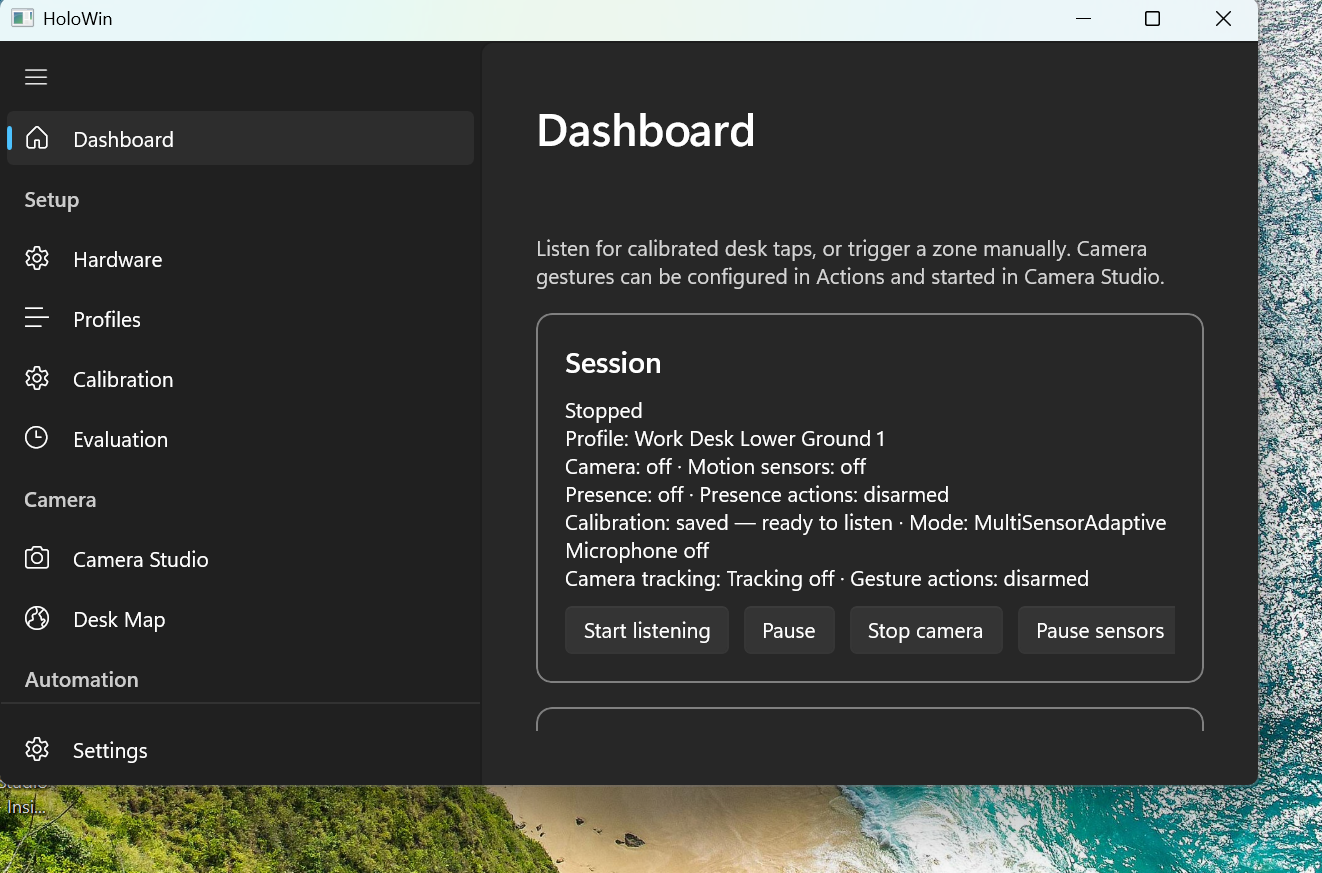
- Choose Audio only in Settings, then press Start listening on Dashboard. One accepted tap runs the assigned action.
Click a Dashboard zone to test its action without the microphone. For camera controls, assign a gesture in Actions, start hand tracking in Camera Studio, check the landmark dots, then enable gesture actions and focus the app you want to control.
Before you use it
HoloWin is experimental. Tap accuracy depends on your desk, microphone and room; calibrate each setup. Camera gestures need clear lighting and a visible hand. Brightness and presence features require hardware that Windows exposes to the app.
Profiles and settings stay on your PC. There is no telemetry or cloud classification. Actions you configure, such as opening a website or running a script, can use the network.
Read the setup guide, troubleshooting notes or privacy policy.
Support HoloWin
Sponsor rotsl on GitHub, report a bug or contribute a change.